Remove Gemini Watermark Photoshop: Can You Do It? A Full 2026 Comparison
Remove Gemini Watermark Photoshop: Can You Do It? A Full 2026 Comparison
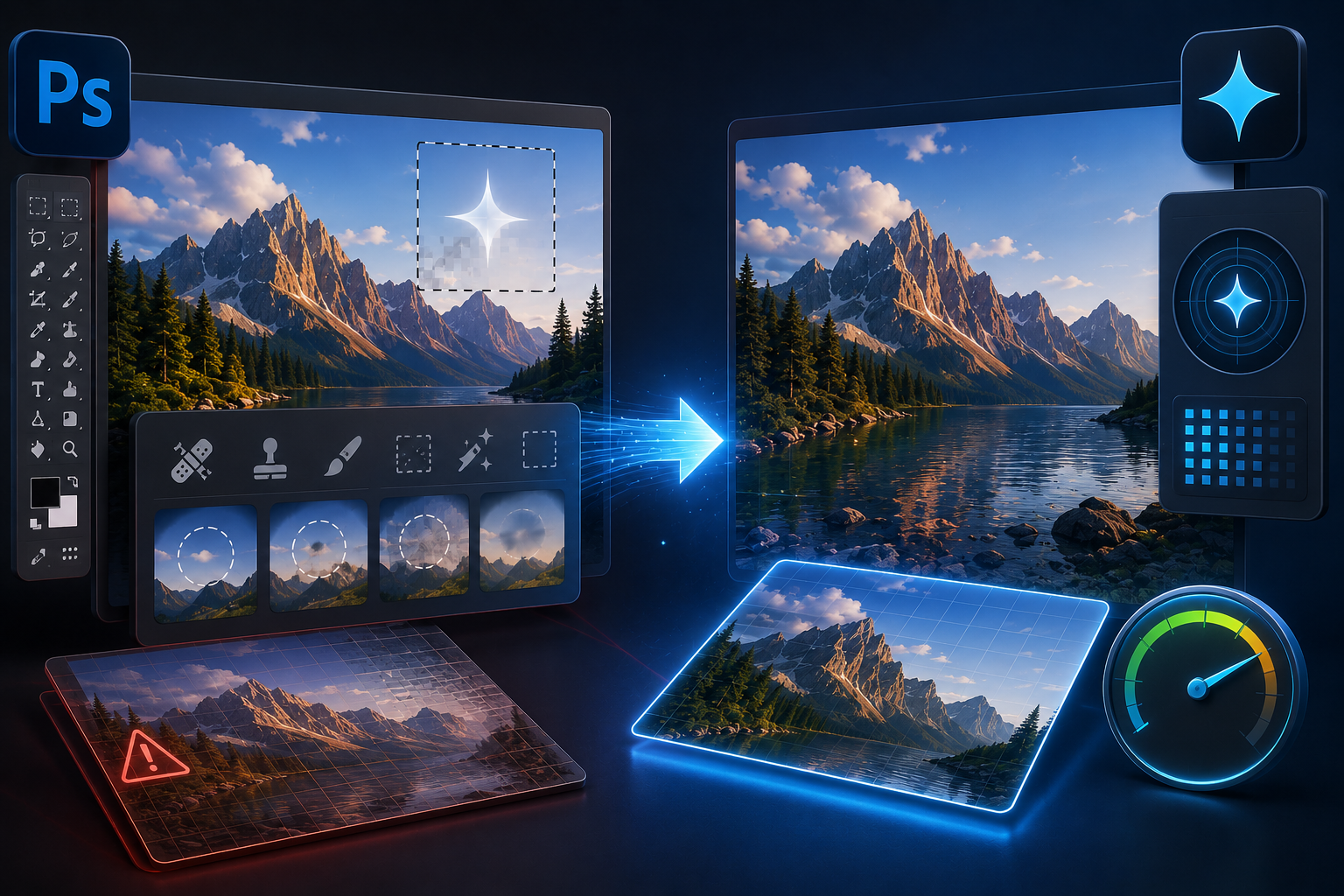
You can remove Gemini watermark Photoshop-style with Content-Aware Fill, Generative Fill, Healing Brush, or Clone Stamp, but the result is usually slower and less precise than GeminiErase. Photoshop treats the sparkle as something to repaint. GeminiErase treats it as a semi-transparent overlay and mathematically reconstructs the pixels underneath.
Photoshop is a powerful image editor. For many creators, it is the first tool they open when they see the visible Gemini sparkle on an otherwise usable AI-generated image.
That instinct makes sense. Photoshop can remove objects, expand images, retouch surfaces, repair backgrounds, and create polished design assets. But the Gemini sparkle is not a normal object. It is a small semi-transparent watermark blended into the image, which makes it a poor match for Photoshop’s standard removal tools.
GeminiErase is built for that exact watermark. It uses deterministic reverse alpha blending, runs in the browser with zero uploads, supports PNG, JPG, and WebP files up to 15MB, and does not remove SynthID.
Why People Try Photoshop First for Gemini Watermark Removal
People try Photoshop first because it is the default professional image editor. If you already pay for Adobe Creative Cloud and know Photoshop’s selection, healing, and fill tools, it feels logical to use it before looking for a dedicated Gemini watermark remover.
Photoshop also has several tools that appear suitable at first glance. Content-Aware Fill can remove selected objects and fill the space using surrounding pixels. Adobe’s own documentation describes it as a way to remove objects from images and fill the area with surrounding pixels.
Generative Fill feels even closer to the job. Adobe describes Generative Fill as a tool that can remove unwanted content from an image using generative AI.
For ordinary retouching, those tools can be useful. If you need to remove a trash can from a street photo, extend a background, or repair a natural texture, Photoshop gives you control.
The problem starts when the target is the Gemini sparkle. The watermark is not just sitting on top of the image as a solid object. It is blended into the pixels with transparency. That means part of the original image is still present and can be mathematically recovered.
Photoshop does not know the exact Gemini sparkle alpha profile. GeminiErase does.
Why Photoshop Struggles with the Gemini Sparkle Specifically
Photoshop struggles with the Gemini sparkle because its removal tools treat the sparkle like missing or unwanted content. The real problem is not missing content. The real problem is alpha compositing. A semi-transparent watermark changes pixel values in a predictable way, so mathematical reversal is more accurate than healing, filling, cloning, or AI guessing.
That difference is small in theory and obvious in production. A creator working on one casual image may accept a soft patch. A designer preparing campaign assets, product visuals, or UI mockups needs cleaner reconstruction.
Content-Aware Fill and Generative Fill treat the sparkle as an opaque object
Content-Aware Fill begins with a selection. You select the unwanted object, then Photoshop samples surrounding pixels to fill the area. Adobe’s help documentation explains that the workflow starts by selecting an object, then using Content-Aware Fill to remove it and fill the space around it.
Generative Fill works differently, but it has a similar assumption. You select the unwanted area, and the AI model creates replacement content.
Both methods are useful when the original pixels are genuinely hidden or gone. They are less suitable when the original pixels are partly recoverable.
The Gemini sparkle is not an opaque sticker. It is a semi-transparent visual mark. Because of that, the original background information still exists inside the composited pixels. Photoshop fills the region. GeminiErase reverses the blend.
The semi-transparent alpha layer problem
The Gemini sparkle works like an alpha overlay. In simple terms, a watermark pixel is blended with a background pixel to create the visible final pixel.
The alpha compositing formula is:
C = (α × W) + ((1 - α) × B)
C is the composited pixel you see. W is the watermark pixel. α is the transparency value. B is the original background pixel.
If you know C, W, and α, you can solve for B:
B = (C - (α × W)) / (1 - α)
That second equation is the basis of reverse alpha blending. GeminiErase uses this deterministic method to reconstruct the background under the visible Gemini sparkle.
Photoshop’s normal removal tools do not perform this Gemini-specific inverse calculation. They repair or generate pixels based on nearby visual context.
Healing Brush artifacts on geometric watermarks and natural textures
Healing Brush and Clone Stamp can work on small defects, but they require manual judgment. They copy or blend neighboring pixels into the selected area.
That can work over soft textures like clouds, grass, or fabric. It struggles over geometric edges, interface lines, product packaging, typography, gradients, and reflective surfaces.
Common Photoshop Gemini watermark removal artifacts include:
Soft blur around the former sparkle.
Repeated texture from clone sampling.
Warped straight lines in UI mockups.
Uneven gradients in skies or product backgrounds.
Slight color mismatch around the repaired area.
Over-smoothed details after multiple brush passes.
The result may look acceptable at thumbnail size. It often fails when the asset is cropped, enlarged, compressed, or placed inside a clean brand layout.
The JPEG compression complication in Photoshop workflows
JPEG compression makes Photoshop workflows harder because it changes the pixels before you edit them. The Gemini sparkle may already be blended into the image, then JPEG compression adds block artifacts and color shifts around it.
This matters for both Photoshop and GeminiErase. A heavily compressed image gives every tool less accurate data.
The difference is that Photoshop tends to hide compression damage by repainting the area. GeminiErase tries to reconstruct the background mathematically. PNG or high-quality WebP usually gives cleaner results because the underlying pixel information is less damaged. GeminiErase supports PNG, JPG, and WebP up to 15MB.
For professional workflows, export the highest-quality original before editing. Do not screenshot a Gemini image, compress it, upload it elsewhere, and then try to clean the watermark afterward.
Step-by-Step: Trying to Remove the Gemini Sparkle in Photoshop
To remove the Gemini sparkle in Photoshop, you usually select the sparkle, run Content-Aware Fill or Generative Fill, inspect the result, then repair artifacts manually with Healing Brush or Clone Stamp. The workflow can work, but it is functional rather than precise and becomes slow across multiple images.
This is the realistic Photoshop process most users attempt.
Step 1: Open the Gemini image in Photoshop
Start with the highest-quality file available. PNG is better than a compressed JPEG. If the image came from a screenshot, expect more artifacts.
Duplicate the background layer before editing. This lets you compare the original sparkle against the repaired version and avoid destructive edits.
Step 2: Select the Gemini sparkle
Use the Lasso Tool, Object Selection Tool, or Marquee Tool to select the sparkle. Give the selection a small margin so Photoshop has room to blend the edge.
This is already less precise than a dedicated tool. If the selection is too tight, leftover sparkle pixels remain. If it is too wide, Photoshop repaints more of the image than necessary.
Step 3: Try Content-Aware Fill
Right-click the selected area and choose Content-Aware Fill. Photoshop samples surrounding pixels and fills the selected region.
Adobe’s Content-Aware Fill workflow is designed around removing objects and filling with surrounding pixels. That explains why it can work on some backgrounds and fail on precise overlays.
If the sparkle sits over sky, grass, or water, the result may be usable. If it sits over a product edge, text area, interface card, or clean gradient, artifacts become more visible.
Step 4: Try Generative Fill
Generative Fill may create a cleaner-looking patch than Content-Aware Fill in some cases. Adobe describes it as useful for removing unwanted content from an image.
The issue is that Generative Fill creates new pixels. It does not reconstruct the original image under the watermark.
That matters when you need accuracy. A generated patch can be visually plausible and still wrong. It may invent a texture, blur a line, change lighting, or slightly alter product detail.
Step 5: Repair with Healing Brush or Clone Stamp
After using Content-Aware Fill or Generative Fill, you often need manual cleanup. Use Healing Brush for small texture differences. Use Clone Stamp when you need more control.
This step is where time grows. One image may take two minutes. A batch of 50 campaign images can become hours of repetitive repair.
Result: functional but imprecise and time-consuming
Photoshop can remove the visible Gemini sparkle in a rough visual sense. It is not the best method if you want pixel-accurate cleanup.
The result depends on background complexity, selection quality, compression level, and how much manual retouching you are willing to do. That makes Photoshop workable for one-off edits, but inefficient for repeatable Gemini watermark cleanup.
Step-by-Step: Remove the Gemini Sparkle in GeminiErase
To remove the Gemini sparkle in GeminiErase, upload or drag the image into the browser tool, let it detect the watermark, apply reverse alpha blending locally, then download the cleaned file. The process is designed for the specific Gemini sparkle, so it is faster and more accurate than Photoshop repainting.
GeminiErase does not try to replace Photoshop as a creative editor. It replaces the part of the workflow where Photoshop is the wrong tool for a predictable alpha overlay.
Step 1: Open GeminiErase
Go to remove your Gemini watermark with GeminiErase. No account is required.
The tool runs in your browser. Your image is processed locally using JavaScript Web Workers and Canvas API, with zero server uploads.
Step 2: Add your Gemini image
Use a PNG, JPG, or WebP file up to 15MB. For best results, use the original Gemini export rather than a screenshot or heavily compressed file.
GeminiErase works on consumer Gemini app images, Google AI Studio outputs, Nano Banana, and Nano Banana Pro images where the visible Gemini sparkle is present.
Step 3: Let the tool detect the sparkle
GeminiErase uses Normalised Cross-Correlation pyramid scanning to detect 48 by 48 and 96 by 96 pixel watermark blocks.
This matters because you do not need to manually select the sparkle. You avoid the common Photoshop problem of selecting too much or too little.
Step 4: Apply reverse alpha blending
GeminiErase uses the inverse alpha formula to reconstruct the background pixels. It also uses Float32Array processing to reduce rounding errors that can happen in normal Canvas API workflows.
The output is deterministic. The same input produces the same output. That is better for production teams than a generative fill result that can vary across attempts.
Result: pixel-accurate, instant, and free
GeminiErase processes images in under 2 milliseconds and produces 99.9 percent pixel-accurate results for the specific Gemini sparkle profile, according to the tool context.
It also keeps SynthID intact. That is important because SynthID is Google’s invisible forensic watermark, separate from the visible sparkle. Removing the visible sparkle does not remove AI provenance or disclosure responsibilities.
Google says it maintains the visible Gemini sparkle on images generated by Free and Google AI Pro tier users, while removing it for Google AI Ultra subscribers and Google AI Studio developer tool outputs. Google also says SynthID remains part of its generated media transparency approach.
Photoshop vs GeminiErase: Full Feature Comparison Table
Photoshop is broader, but GeminiErase is more precise for the visible Gemini sparkle. Photoshop wins for complex creative editing, manual retouching, and non-Gemini image manipulation. GeminiErase wins for speed, privacy, accuracy, simplicity, and Gemini-specific watermark reconstruction.
Feature | Photoshop | GeminiErase |
|---|---|---|
Main purpose | Full image editing and retouching | Gemini sparkle watermark removal |
Removal method | Content-Aware Fill, Generative Fill, Healing Brush, Clone Stamp | Reverse alpha blending |
Best use case | Complex edits, object removal, creative retouching | Visible Gemini sparkle cleanup |
Accuracy on Gemini sparkle | Depends on selection and background | Designed for the Gemini sparkle alpha profile |
Speed | Manual, usually minutes per image | Under 2 milliseconds processing |
Privacy | Local for manual tools, cloud features may depend on Adobe workflow | Zero uploads, browser-based |
Account required | Adobe account and subscription usually required | No account |
Price | Paid Photoshop subscription | Free |
Batch practicality | Possible with actions, but manual QA remains heavy | Fast structured workflow, no signup |
Works on non-Gemini watermarks | Yes, depending on use rights and method | No, purpose-built for Gemini sparkle |
SynthID impact | Depends on edit severity and workflow | Does not remove SynthID |
Best production sequence | Final creative polish | First-pass Gemini sparkle cleanup |
The best workflow is not always Photoshop or GeminiErase. For Gemini images, the strongest sequence is often GeminiErase first, Photoshop second.
Clean the sparkle mathematically. Then use Photoshop only for creative finishing, color, layout, compositing, or final retouching.
When You Should Still Use Photoshop
You should still use Photoshop when the job goes beyond Gemini sparkle removal. Photoshop is better for full creative manipulation, non-Gemini watermarks, manual compositing, typography, color grading, background extension, and detailed retouching. GeminiErase is narrower by design.
A narrow tool is not a limitation when the problem is narrow. The Gemini sparkle is a specific technical overlay. Photoshop remains valuable for everything around it.
Complex image manipulation beyond watermark removal
Use Photoshop when you need to change the image creatively. Examples include:
Replacing a background.
Adjusting lighting and color grade.
Combining multiple images.
Retouching product imperfections.
Removing unrelated objects.
Adding typography or layout elements.
Preparing final ad exports.
GeminiErase does not try to handle those jobs. It focuses on removing the visible Gemini watermark with the least possible change to the image.
Watermarks on non-Gemini images
GeminiErase should not be used for stock photo logos, Getty watermarks, creator signatures, copyright marks, tiled preview text, or unrelated platform branding.
It is purpose-built for the Gemini sparkle alpha profile.
If a watermark is opaque, the original pixels behind it are not recoverable from the file. In that case, manual retouching or inpainting may be the only technical option, assuming you have the right to edit the image.
Do not remove copyright notices, artist signatures, or stock watermarks from content you do not own or license.
Final polishing after GeminiErase
Photoshop is useful after GeminiErase. You may still want to crop, sharpen, adjust contrast, resize, add overlays, or prepare final design exports.
The clean workflow is:
Save the original Gemini image.
Remove the visible sparkle with GeminiErase.
Open the cleaned file in Photoshop.
Make creative edits.
Export final campaign assets.
Add AI disclosure where required.
This keeps the watermark cleanup mathematically precise while leaving Photoshop for professional finishing.
Legal and Disclosure Notes Before You Publish
Removing the visible Gemini sparkle does not change your legal or platform disclosure obligations. GeminiErase does not remove SynthID, and a cleaned Gemini image is still AI-generated. You should disclose AI-generated content where required by platform rules, client policy, advertising standards, or applicable law.
This is especially important for commercial imagery. A clean image can still be misleading if it suggests a real person, real event, real product result, or real testimonial that does not exist.
Google’s visible sparkle policy also shows why visual cleanup and AI provenance are separate layers. Google says some professional outputs do not receive the visible watermark, while SynthID remains part of Google’s generated media transparency stack.
For deeper legal context, read is it legal to remove the Gemini watermark and Gemini watermark vs SynthID.
FAQ
Can you remove a Gemini watermark in Photoshop?
Yes, you can remove a Gemini watermark in Photoshop using Content-Aware Fill, Generative Fill, Healing Brush, or Clone Stamp. The result is often functional, but not pixel-accurate. Photoshop repaints or repairs the area, while GeminiErase mathematically reverses the semi-transparent Gemini sparkle overlay.
Why does Photoshop struggle with the Gemini sparkle?
Photoshop struggles because the Gemini sparkle is a semi-transparent alpha overlay, not a fully opaque object. Content-Aware Fill and Generative Fill treat it like missing content to replace. GeminiErase treats it as a compositing problem and uses reverse alpha blending to reconstruct the original background pixels.
Is GeminiErase better than Photoshop for Gemini watermark removal?
For the visible Gemini sparkle, yes. GeminiErase is purpose-built for that watermark profile and processes locally in under 2 milliseconds. Photoshop is better for broader creative editing, but it is slower and less precise for this specific semi-transparent watermark.
Does GeminiErase remove SynthID?
No. GeminiErase does not remove SynthID. It removes only the visible Gemini sparkle. SynthID is Google’s invisible forensic watermark and remains separate from visual cleanup. Removing the visible mark does not make the image non-AI or remove your disclosure responsibilities.
Can Photoshop remove SynthID from Gemini images?
Photoshop is not designed as a SynthID removal tool. Editing, exporting, compression, and transformation may affect detection in some cases, but attempting to remove forensic provenance is not the same as cleaning a visible design mark. GeminiErase intentionally does not remove SynthID.
Should I use Photoshop Content-Aware Fill for the Gemini sparkle?
You can use Content-Aware Fill for quick one-off edits, especially over simple natural backgrounds. For clean product images, UI mockups, geometric lines, gradients, and batch workflows, GeminiErase is usually more accurate because it reconstructs the watermark area instead of filling it with sampled pixels.
Can I use GeminiErase and Photoshop together?
Yes. The best workflow is often GeminiErase first, Photoshop second. Use GeminiErase to remove the visible Gemini sparkle accurately. Then use Photoshop for final cropping, color grading, retouching, layout work, or export preparation. This avoids using Photoshop for a problem better solved with math.
Can I use cleaned Gemini images commercially?
You can use cleaned Gemini images commercially if your use follows Google’s terms, copyright rules, client agreements, platform policies, and applicable disclosure requirements. Cleaning the visible sparkle improves presentation quality, but it does not remove SynthID or eliminate AI disclosure obligations.
Get the clean result Photoshop struggles to produce on the Gemini sparkle. Remove your Gemini watermark with GeminiErase, keep SynthID intact, and use Photoshop afterward only for creative finishing. Free, instant, browser-based, and no account required.